
Watching to decide takes time
A colleague forwards you a webinar because it sounds interesting. It runs for more than an hour, and you can't skim it like an article. You could start watching to see whether it's for you, but finding out might take time you would rather spend elsewhere.
In How to choose an AI assistant as a business professional, I listed video and audio among Gemini's strengths. Its free version can preview public YouTube videos, so you don't need a paid plan to try this. Paste the prompt below and a YouTube link into a regular chat. The response can help you decide whether to watch and, if it finds a reliable timestamp, where to start. If you want to use the prompt again, save it in a notebook so the next video needs only a link.
What to ask Gemini
I ask for four things that help me decide:
- The main message in two sentences. Is this the subject I expected?
- Three to five specific takeaways. Does it cover anything I want to learn?
- Who would benefit, in one sentence. Am I one of those people?
- A link past the introduction. If I watch, where does the useful explanation begin? The prompt tells Gemini not to guess at a timestamp.
You can change the prompt to suit your decision. Ask for fewer takeaways, for example, or remove the timestamp request if you always watch from the start.
If Gemini cannot access the video, the prompt tells it to ask for a transcript rather than invent an answer.
# Help Me Decide Whether to Watch a YouTube Video

Use the following format and keep the entire response under 180 words.

### Summary

Explain the main message of the video in 2 short sentences.

### Key Points

Give 3–5 specific takeaways as bullet points.

### Worth Watching If

Explain in 1 sentence who would benefit from watching the video and why.

### Start Watching Here

- Identify where the substantive explanation begins.
- Skip greetings, self-introductions, and opening promotions while preserving necessary context.
- Provide a clickable YouTube link to that timestamp.
- Briefly explain what begins at that point.
- Use only timestamps supported by accessible content.
- If a reliable timestamp cannot be determined, state this clearly instead of guessing.
- If no video URL is supplied, provide only the supported timestamp.

### Content Requirements

- Use only content accessible from the video or its transcript.
- Do not guess based on the title or description alone.
- If neither the video nor its transcript is accessible, state this clearly and ask for the transcript.

### Formatting

Structure the response in Markdown for readability.
Save the prompt once
If the preview helps you decide, save the prompt in a Gemini notebook. The notebook holds the instructions, so the next time someone sends you a video, you only need to paste its URL. Here is how I set up my YouTube Summarizer.
Create your video notebook
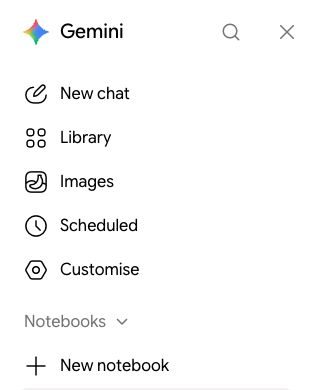
Go to Gemini (opens in a new tab), sign in, and open the menu at the top left. Under Notebooks, select New notebook.
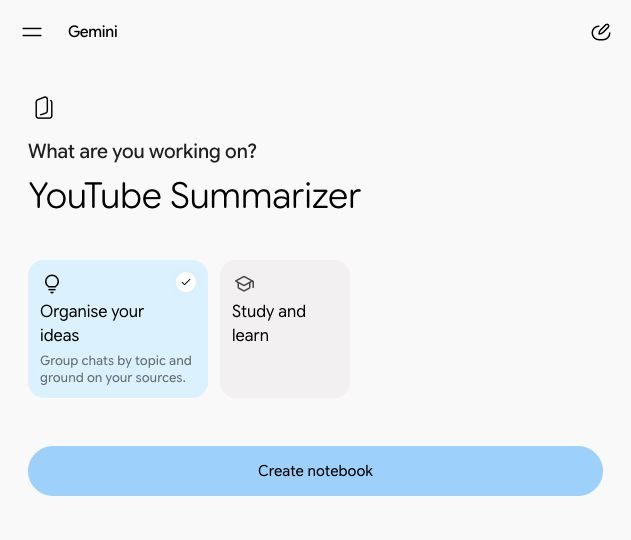
Keep Organise your ideas selected, enter YouTube Summarizer as the name, and select Create notebook. You do not need to add files for this workflow.
If Notebooks does not appear in your account, you can use the prompt in an ordinary Gemini chat until the notebook feature is available to you.
Keep each video separate
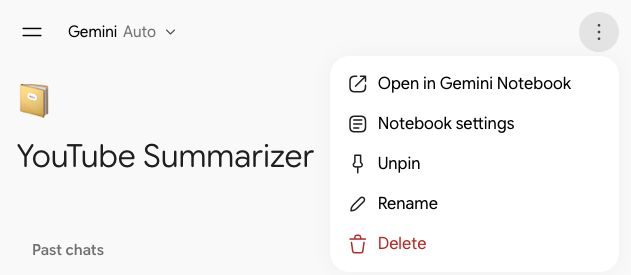
Open the new notebook. At the top right, select More, then Notebook settings.
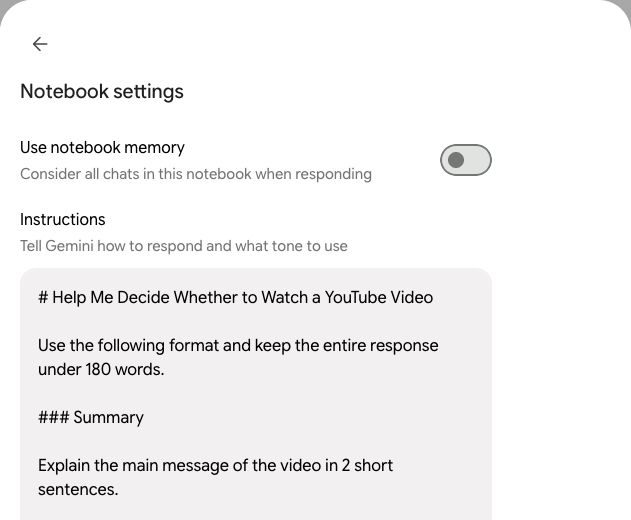
Make sure Use notebook memory is off. With notebook memory off, Gemini won't use earlier chats in this notebook when preparing the next preview.
Then copy the prompt above into Instructions and select Save. You can change these instructions later. The notebook now holds the prompt; the chat box is only for the video URL.
Paste a link and decide
Open YouTube Summarizer from the Gemini sidebar, paste a YouTube link into its chat, and send it. You don't need to paste the prompt or add any other information.
If Gemini cannot access the video, you can share a transcript if one is available and you are allowed to use it. A transcript may miss visual demonstrations.
For a video Gemini can preview, read the summary and key points before you decide. If you choose to watch, check the suggested start link before skipping ahead. If the video isn't for you, move on.
Help me improve this article.
Know a colleague who would find this useful?
By sending this message, you agree to my privacy policy.